
AI for Contractors: How to Write AI Prompts That Get Better Results in JobTread
By Meredith Dobbs
Knowing how to write AI prompts effectively is one of the most valuable skills a contractor can develop right now.
AI is a powerful assistant inside JobTread, helping you move faster on everything from estimates and budgets to client communication. But AI for contractors works best as a starting point, not a replacement for your review and judgment. The tips below will help you get better results from any AI platform you connect to JobTread whether you are running AI construction estimating, reporting, or client communication.
Think of AI as a knowledgeable intern: capable, but not ready to act without your review. It carries great knowledge but isn’t ready to handle great responsibility because it doesn’t have your human experience, context, and instinct to make decisions. AI also doesn’t have “common sense.”
JobTread users who want to connect AI tools through the AI Connector should keep the following best practices in mind when crafting prompts and interacting with an AI platform to minimize errors and maximize effectiveness.
AI Prompting Tips for Contractors
Start with Specific Details
AI output is only as good as the input. A strong prompt is specific, detailed, and structured. Include exact job specs, materials, scope, and constraints so that AI doesn’t have to make assumptions.
Example
Instead of asking, “Create an estimate,” try: “Create a draft estimate for a 12x16 pressure-treated wood deck with stairs, railing, concrete footings, and labor separated by phase.”
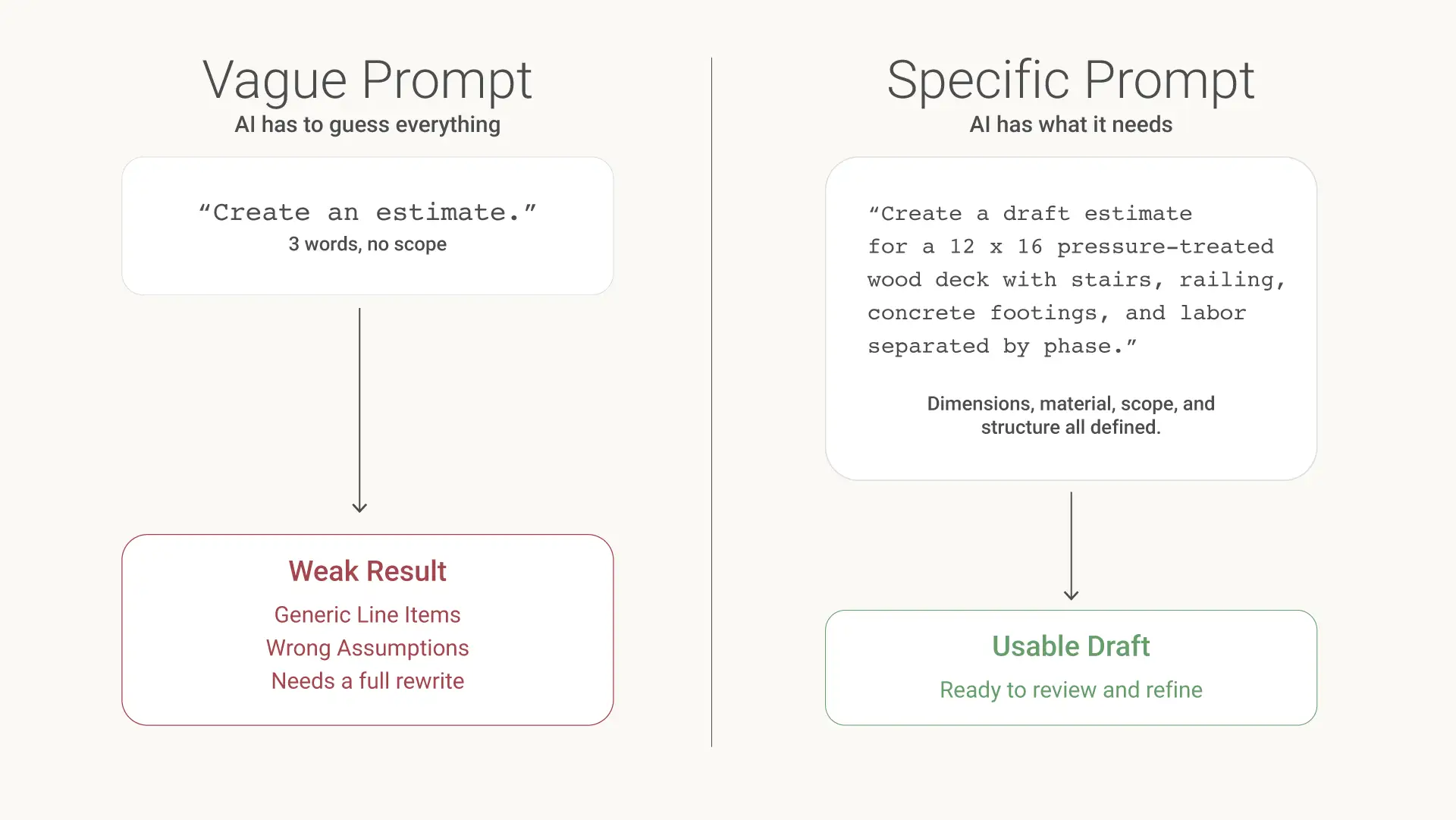
A vague prompt forces AI to guess. A specific prompt gives it everything it needs to produce a usable draft.
Ask AI to Show Its Thinking
Tell AI to list its assumptions and ask clarifying questions before proceeding. This reduces the risk of hallucinated details and ensures the output is grounded in reality.
Example
“Before creating the estimate, list any assumptions you are making about materials, labor, site conditions, and project scope.”
Let AI Ask You Questions
Instead of guessing what to include, prompt AI to ask you targeted questions about the job. This helps surface missing details and leads to more accurate estimates, scopes, and documentation.
Example
“Ask me up to 10 questions about this kitchen remodel before creating the scope of work.”
Confirm the Plan First
Ask AI to summarize your request in its own words before taking action. This gives you a chance to catch misunderstandings early before they impact budgets, schedules, or client communication.
Example
“Summarize what you understand about this job before creating the budget so I can confirm the details are correct.”
Bring AI Into Your Construction Workflow.
Learn how JobTread can help you focus on what matters most.
Save Context for Repeat Work
Tools like Claude AI Projects allow you to store ongoing context, making outputs more consistent over time. If your platform doesn’t support memory, use a saved prompt template and upload a standard job structure or rules document. This helps “train” AI quickly for repeatable workflows.
Example
“Use this standard estimating structure for all future deck projects: demo, framing, decking, railing, stairs, cleanup, and final walkthrough.”
Review Drafts Before Updating Job Data
Always have AI generate a draft before making changes to a live JobTread job. Review outputs before updating budgets, sending client communication, or modifying job data. This reduces costly mistakes and keeps you in control.
Example
“Create a draft change order description for review. Do not update the job or send anything to the customer yet.”
Tell AI Who to Act Like
Assign a clear role to improve output quality. For example, you could say, “Act as an experienced residential contractor creating a detailed job estimate.” This helps AI match tone, structure, and level of detail to your industry.
Example
“Act as an experienced residential remodeler writing a clear, client-friendly scope of work for a bathroom renovation.”
Tell AI What the Finished Output Should Look Like
Don’t just ask for results. Tell AI exactly how to format information with instructions such as create a table, write a client-ready message, or add a line-item budget. Clear formatting means faster implementation inside JobTread.
Example
“Format this as a table with columns for task, material, labor, estimated cost, and notes.”
Set Clear Limits
Be explicit about limits with budget ranges, material preferences, local code requirements, and timeline constraints. This prevents unrealistic or unusable outputs.
Example
“Create a project schedule that fits within a 6-week timeline and avoids scheduling inspections on Fridays.”
Use Real Examples
Provide past estimates, sample scopes, or real job descriptions. These AI prompt examples give the tool a model to follow, and AI performs significantly better when it has one.
Example
“Use this previous approved proposal as the model for tone, structure, and level of detail.”
Double-Check Everything
AI is powerful, but it’s not accountable. Always review for missing costs, incorrect assumptions, and unrealistic timelines. If it affects money, double-check it.
Example
“Review this estimate for missing labor, unrealistic timelines, incorrect quantities, or costs that seem too low.”
What to Do When the Output Isn’t Right

AI will get it wrong sometimes. That’s not a failure. It’s just the process. The contractors who get the most out of AI aren’t the ones who get perfect results on the first try. They’re the ones who know how to push back.
When the output isn’t what you needed, don’t scrap the conversation and start over. Respond to it. Tell Claude what was off: too long, wrong format, missing a cost item, not how you’d phrase it to a customer. The more specific you are about what’s wrong, the faster it corrects.
A few things worth knowing:
- The first response is a draft, not a final answer.
Treat every AI output the way you would treat a first pass from a new employee. Review it, mark it up, and send it back with notes. - Vague feedback gets vague responses.
“That’s not right” won’t get you far. “The labor line is missing and the total should reflect a 10% margin” will. Describe the problem the same way you’d describe it to someone on your crew. - You can course-correct mid-conversation.
If you asked for a budget summary, and it gave you something too detailed, just say so. “Shorten this to three lines: total contract value, amount collected, and remaining balance.” It will adjust. - Iteration is how the good stuff gets built.
Most of the sophisticated workflows contractors are running today, like automated job reports, scope-to-budget conversions, and schedule reassignments, didn’t come out perfect on the first prompt. They got refined over dozens of back-and-forth exchanges. That’s normal. That’s the process.
The goal isn’t a magic prompt that works every time. The goal is getting comfortable enough with the conversation that you can get to the right output reliably, whatever it takes to get there.
Try These Prompts With JobTread
Here are a few prompts worth trying with JobTread and Claude. Outcomes aren’t guaranteed, so use them at your own discretion and follow good AI usage practices.
Reporting & Analytics
Open Jobs Status Report
Pull all of my currently open jobs from JobTread and create a status report. For each job, include the job name and customer name, current status, contract value vs. total costs to date, and any outstanding balance. Sort them by contract value (highest first) and flag any jobs where costs are within 10% of the contract amount.
Budget Health Check
Pull the budget and cost data for the job named [Job Name] in JobTread. For each cost category or line item, show the budgeted amount vs. actual costs and calculate the variance. Flag any category that is over budget or within [15]% of the budget limit. Summarize the overall financial health of the job at the end.
Jobs Nearing Completion
Look through all open jobs in JobTread and find any where total costs are at [80]% or more of the contract amount. List them with the job name and customer, contract value, total costs to date, remaining budget, and current job status. This will help me prioritize final invoicing and closeout steps.
Financial & Invoicing
Unpaid Invoice Report
Look up all unpaid or partially paid invoices in JobTread. For each one, show the customer name, invoice amount, amount paid so far, balance remaining, and days since the invoice was issued. Give me a total outstanding AR balance and flag any invoices that are more than [30] days old.
Generate and Send a Customer Invoice
For the job named [Job Name] in JobTread, create a new invoice with the following details. Invoice amount: $[Amount] or [X]% of the contract value. Invoice description: [e.g., Progress Billing - Framing Complete]. Due date: [Due Date]. Confirm the invoice details and provide the invoice number once created.
Record a Customer Payment
Log a payment in JobTread for the customer [Customer Name] on the job [Job Name]. Payment amount: $[Amount]. Payment method: [Check / ACH / Credit Card / Cash]. Payment date: [Date]. Apply to invoice #[Invoice Number] or the most recent unpaid invoice. Reference number if applicable: [Reference Number]. Confirm the payment was recorded and show me the remaining balance on the invoice.
Jobs & Project Management
Create a New Job with Budget
Create a new job in JobTread with the following details. Customer name: [Customer Name], create the customer if they do not already exist. Job name: [Job Name]. Job description: [Brief description of the scope of work]. Start date: [Start Date]. Add the following budget line items: [Category 1]: $[Amount], [Category 2]: $[Amount], [Category 3]: $[Amount]. Set the job status to [Estimate / Active / Pending] when done.
Update a Job Status
Find the job named [Job Name] in JobTread and update its status to [Active / On Hold / Completed / Cancelled]. Add an internal note that says: [Reason for status change]. Confirm the update and show me the job’s current details after the change.
Duplicate a Job as a Template
Find the job named [Existing Job Name] in JobTread and use its budget categories and line items as a template. Create a new job with the following details. Customer: [New Customer Name]. Job name: [New Job Name]. Adjust the budget amounts as follows: [describe changes, or say keep the same amounts as the original]. Confirm when the new job is created and show me the new job’s summary.
Customers & Relationships
Customer Job History Lookup
Search JobTread for all jobs associated with the customer named [Customer Name]. Give me a summary of each job title and its current status, contract value and total costs, and the date the job was created. Include a total revenue summary across all their jobs.
Create a New Customer Record
Create a new customer record in JobTread with the following information. Name: [Full Name or Business Name]. Email: [Email Address]. Phone: [Phone Number]. Address: [Street, City, State, ZIP]. Customer type: [Residential / Commercial]. Notes: [Any relevant notes, e.g., Referred by (Name) or Prefers text communication]. Confirm the customer was created and provide their new customer ID.
Draft a Follow-Up Email for an Unaccepted Estimate
The customer [Customer Name] received an estimate for [Job Description] on [Date] and has not responded yet. Draft a professional and friendly follow-up email checking in on the estimate. Keep the tone warm, not pushy. The estimate total was $[Amount] and it expires on [Expiration Date] if applicable.
Estimating & Sales
Build a Bid or Estimate from Scratch
Create a new estimate in JobTread for the following project. Customer: [Customer Name], create if new. Project name: [Project Name]. Project location: [Address or City]. Project type: [e.g., Kitchen Remodel / New Build / Tenant Improvement]. Add the following estimate line items: [Work item 1]: $[Price], [Work item 2]: $[Price], [Work item 3]: $[Price]. Include a markup line of [X]% for overhead and profit if applicable. Set an expiration date of [Date] and confirm the total estimate amount when done.
Pull All Open Estimates
Pull all estimates in JobTread that have not yet been converted to active jobs. Show the estimate name, customer, total estimate value, date created, and current status. Sort by date created (oldest first) so I can prioritize following up.
The Bottom Line
Contractors who learn how to work with AI will move faster, make better decisions, and stay ahead. As construction employment continues to grow, according to the U.S. Bureau of Labor Statistics, the contractors who pair that growth with better tools will have the edge.
The advantage isn’t using AI. It’s knowing how to guide it.
Disclaimer: The tips in this post are based on general AI prompting best practices. JobTread provides the AI Connector as a tool to connect your account to third-party AI platforms. We are not affiliated with, partnered with, or responsible for any AI platform or its outputs. Use of AI tools in connection with your JobTread account is at your own discretion, and we encourage you to review any AI-generated content before applying it to your business.
Frequently Asked Questions
Elevate your company to new levels of success!
Let one of our experts show you how JobTread will get you organized, save your time, and increase your profits.
Book a Demo

Meredith Dobbs is a Digital Marketing Specialist at JobTread with a background in education, research, and strategic communication. She specializes in creating clear, trustworthy messaging that is rooted in research, crafted for connection, and driven by a deep care for customers and their businesses.